[How To] Clean Install MSI Center (UWP), Dragon Center (UWP), or MSI Center Pro
Answer
MSI Center is a centralized control platform designed by MSI for gamers and professional creators, aimed at enhancing the overall user experience on MSI devices. With its intuitive and innovative interface, users can easily monitor and optimize system performance.
If MSI Center encounters issues such as missing functions, abnormal behavior, or failure to launch properly, it is recommended to perform a clean installation by following the steps below.
This FAQ applies to all MSI laptops that support MSI Center (UWP), Dragon Center (UWP), or MSI Center Pro.
(Note: If your notebook supports MSI Center S, please refer to the FAQ: [How To] Clean Install MSI Center S)
Please follow the three stages below to perform a clean installation of MSI Center.
Step 1: Completely Remove MSI Center Using the Cleanup Tool
1. Download and Launch the Cleanup Tool (Clean Center Master)
2. Click the "Clean" button in the center of the window. The tool will automatically clear all MSI Center cache files, remove cookies, and completely uninstall MSI Center and related components.
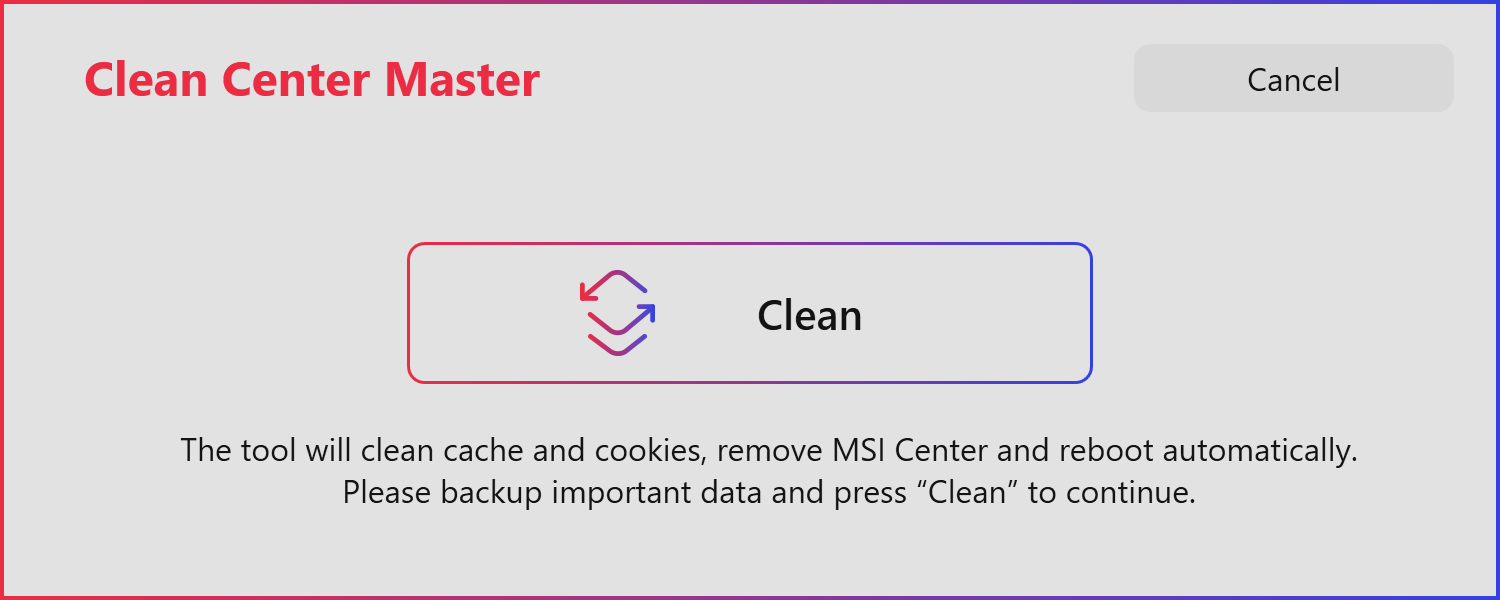
3. Wait for the cleanup process to complete. Once finished, the system will automatically restart your computer. Please save all important work and documents before the restart occurs.
Step 2: Download and Install the Latest Version of MSI Center
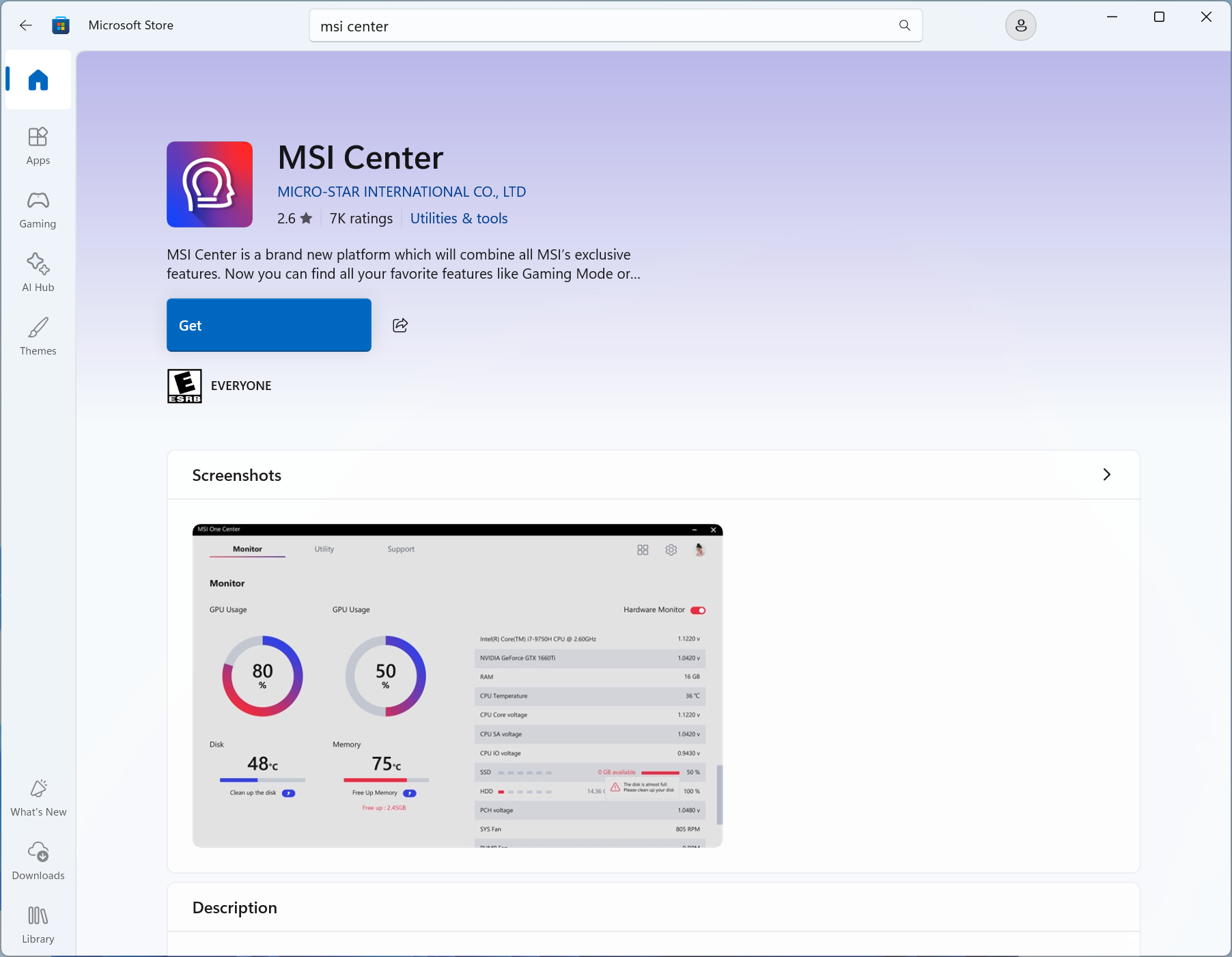
1. Go to the MSI product support page, Under the "Utility & Others" section, locate the MSI Center download link.

2. You will be redirected to the Microsoft Store page. Click Install or Get, and wait for the application to finish downloading and installing.
Step 3: First Launch and SDK Initialization
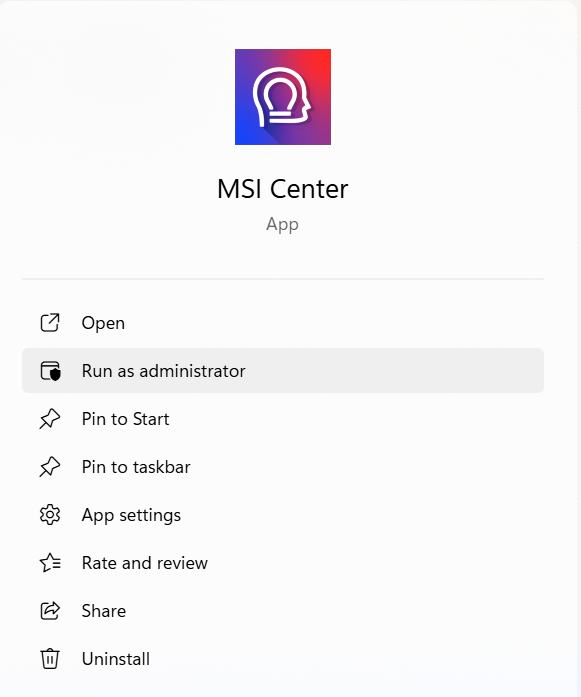
1. Launch MSI Center as Administrator
After installation:
- Click the Windows Search icon on the taskbar.
- Type "MSI Center".
- Locate the application in the search results.
- Right-click it and select "Run as administrator", or choose "Run as administrator" from the right-side menu.
2. Wait for Installation and SDK Initialization
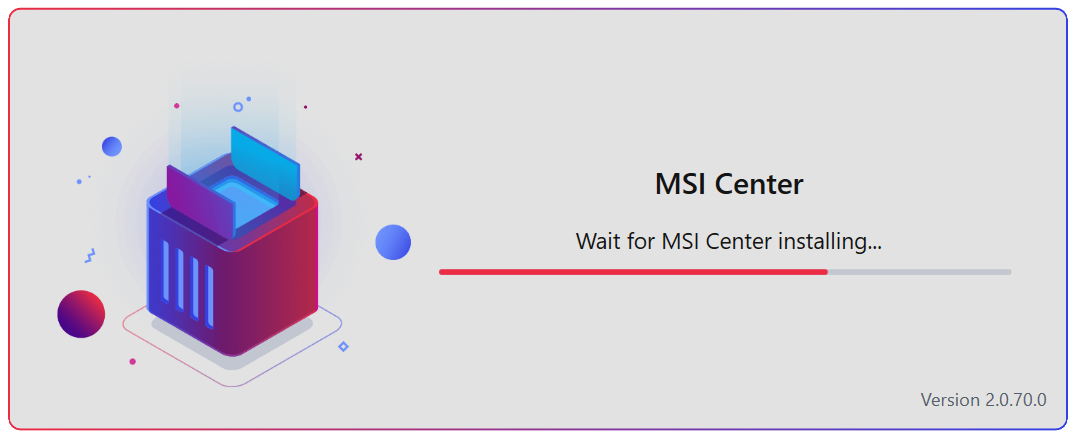
After MSI Center launches, you may see a progress bar with messages such as "Wait for MSI Center installing" or "Waiting for SDK initialization", please be patient and allow the process to complete. And follow the on-screen instructions if prompted.
3. Restart the System
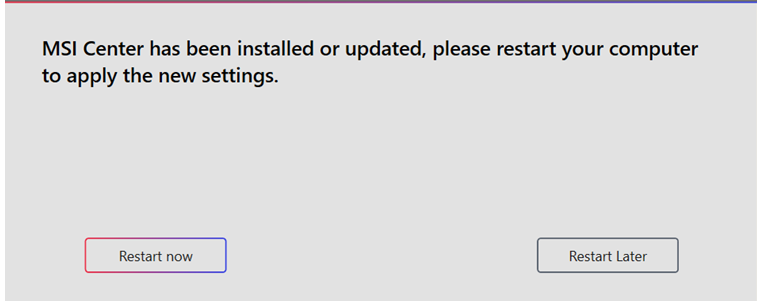
Once initialization is complete, a prompt will appear requesting a restart to apply the new settings, click "Restart now".
4. Completion
After the system restarts, the clean installation process is complete.
FAQ
Q: What is Clean Center Master, and how is it different from a normal uninstall?
A: Clean Center Master is an official MSI deep-cleaning utility. A standard uninstall may only remove the main application while leaving behind SDK (Software Development Kit) components, configuration files, cache files, cookies, etc. These residual files can sometimes cause conflicts between older and newer versions of MSI Center. Clean Center Master thoroughly removes all related files and data, ensuring a clean environment before reinstalling MSI Center.
Q: Why must the computer remain connected to the internet during installation and initialization?
A: MSI Center uses a modular architecture. When the main application is installed through the Microsoft Store and the SDK initialization process begins, MSI Center must connect to MSI servers to download the core components, SDK packages, or Model-specific feature modules. If the internet connection is interrupted during this process, the initialization may fail or become stuck, preventing MSI Center from functioning properly. Therefore, a stable internet connection is required throughout the installation and initialization process.