[How To] Intel HID Event Filter Driver Install/Update Guide
Answer
This article explains how to install/update the Intel HID Event Filter driver.
This article applies to all MSI laptop models equipped with Intel CPUs.
For laptops equipped with 13th Gen Intel CPUs and earlier, if you need to install/update the Intel HID Event Filter driver, please follow these steps.
1. Download the driver installation package
I. Visit the MSI official website and search for the product name.
II. Click "Download" to enter the download page.
III. In the "Drivers" section, find "Intel HID Event Filter" and download the file.
IV. Store the compressed package in the specified location and extract it.
2. Install the driver
I. Select the "Installer" folder.
II. Double-click and select "Setup.exe".
III. Install the driver according to the on-screen instructions.
IV. Once the installation is complete, click "Finish" to restart the laptop.
3. Confirm the installed driver version
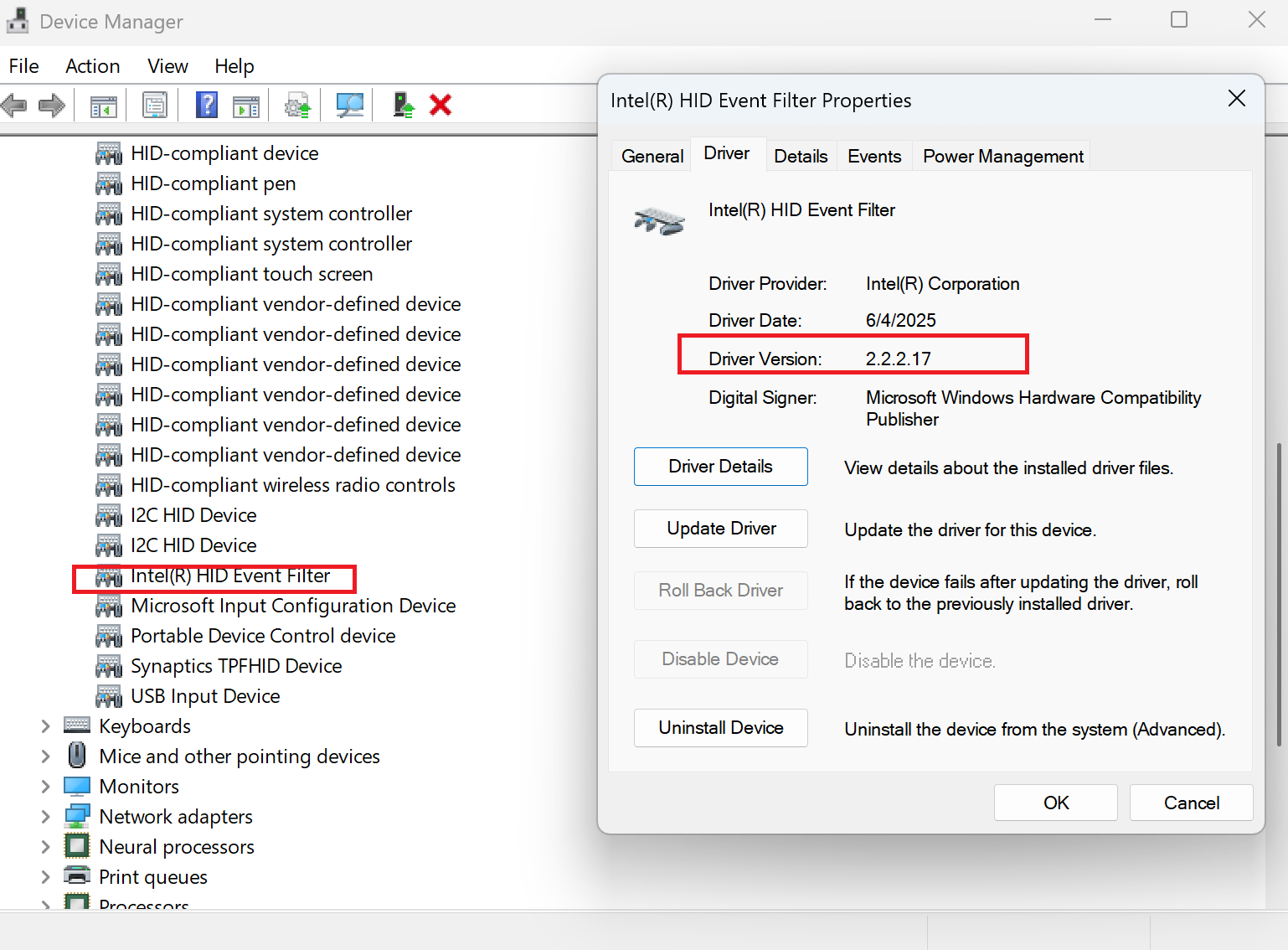
I. Right-click the "Start" icon on the taskbar and open "Device Manager."
II. Find "Intel HID Event Filter" in "Human Interface Devices."
III. Double-click this device and go to "Drivers" to confirm if the driver version matches the one listed on the MSI website.
Note: If the "Setup.exe" file is not found in the extracted folder, please follow the steps below to install the driver using "HidEventFilter.inf".
I. In the extracted folder, go to "Drivers/x64" and find "HidEventFilter.inf" (if you need to recognize file extensions, select "View" > "Show" and check the "File extension" option).
II. Right-click "HidEventFilter.inf" and select "Install."
III. After installation is complete, a prompt will appear saying "Operation successfully completed."
For laptops equipped with 14th Gen Intel CPUs and above, if you need to install/update the Intel HID Event Filter driver, please follow these steps.
1. Download the driver installation package (please refer to the previous section "1. Download the driver installation package").
2. Install the driver
I. Open the extracted target folder.
II. Right-click "install.bat".
III. Select "Run as administrator."
IV. Once the installation program is complete, please restart your laptop.
3. Confirm the installed driver version (please refer to the previous section "3. Confirm the installed driver version").